

How to Connect to Your PC
Connect your Android phone to Bheki Remote Suite in less than 2 minutes.
Launch Bheki Remote Host on Windows
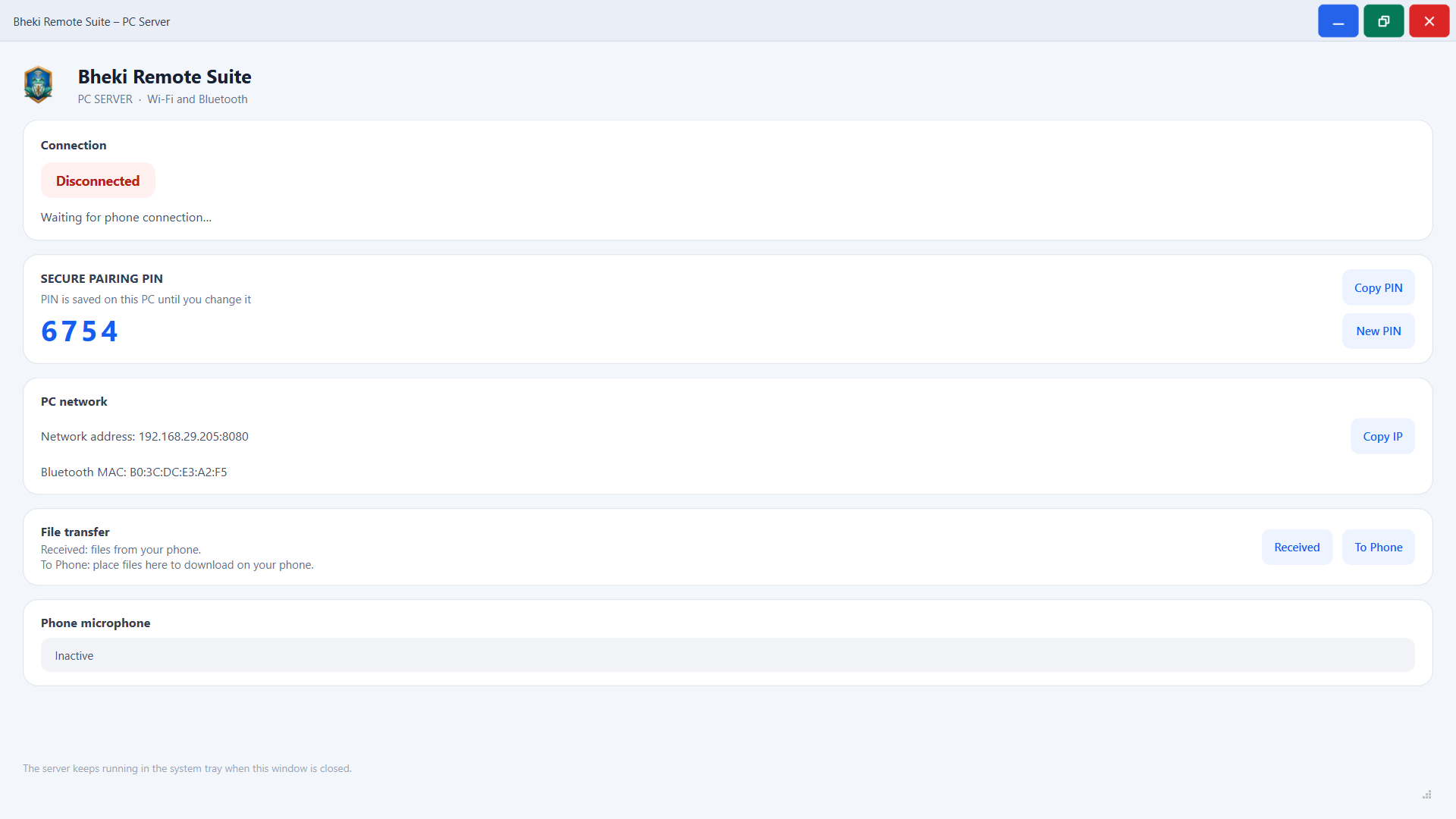
Start Bheki Remote Suite – PC Server on your PC. The server window shows the Wi-Fi address and port, Bluetooth address, and secure pairing PIN. Use the address displayed on your own PC.
Choose Wi-Fi, USB tethering, or Bluetooth
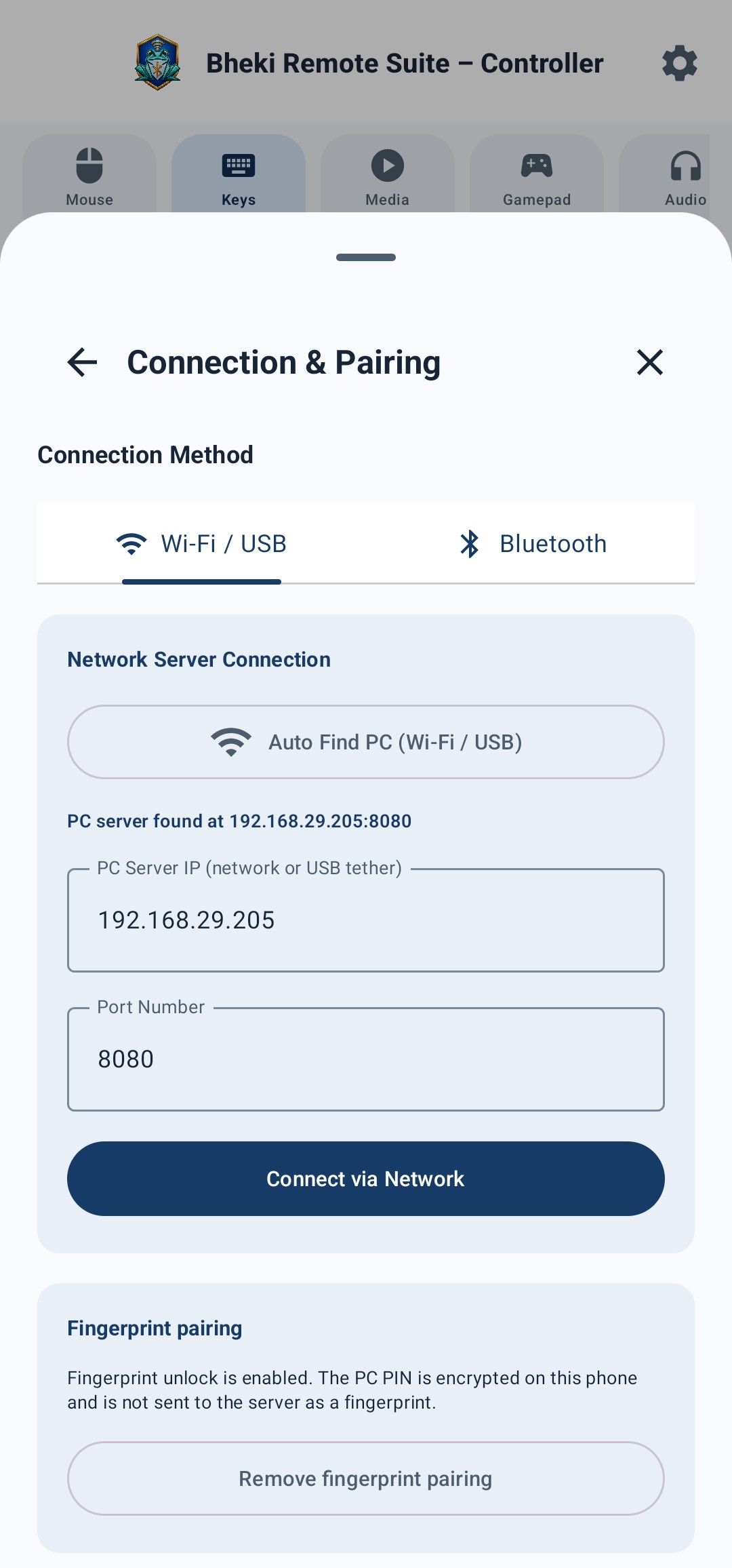
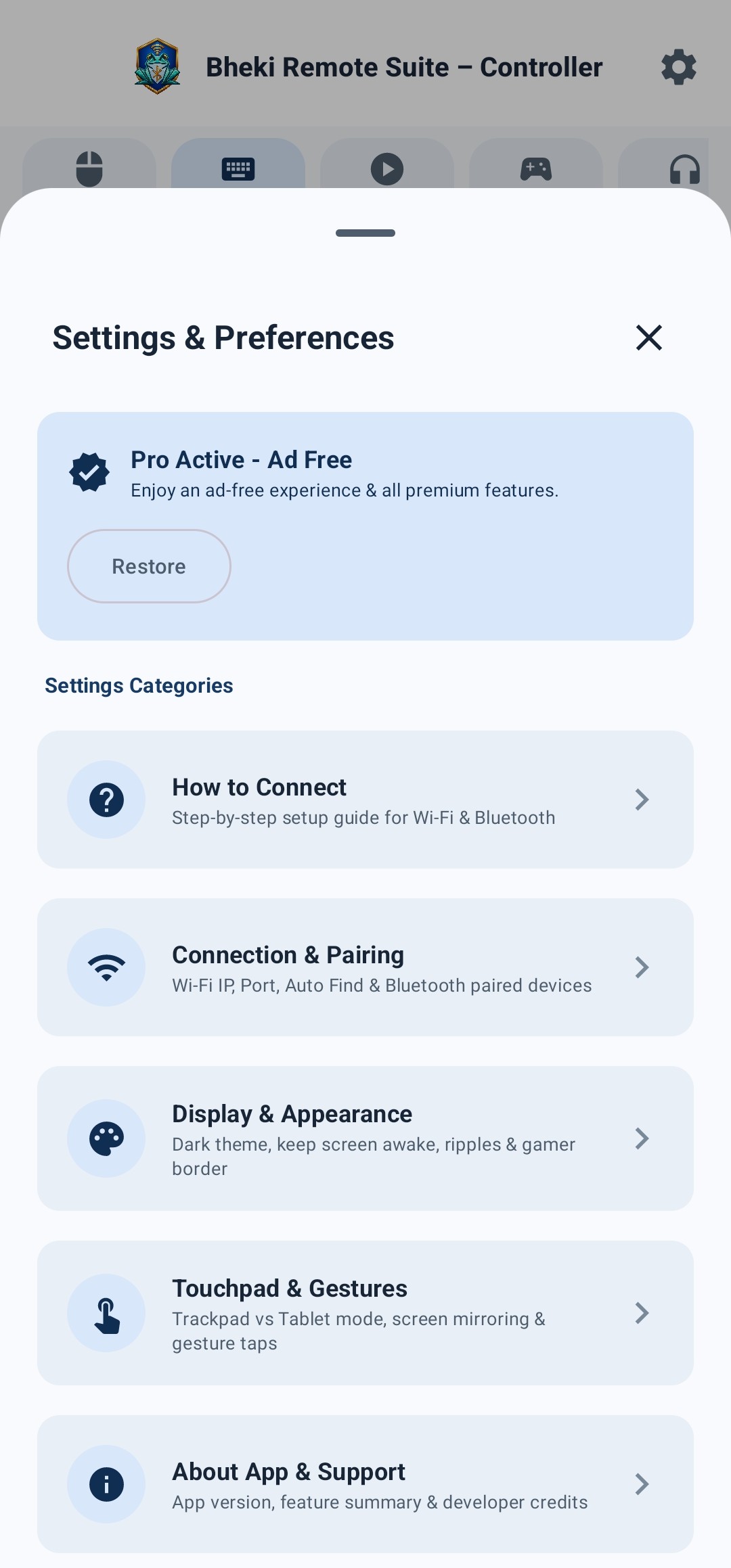
Open Bheki Remote Suite on your phone. Tap the gear icon in the top right to open Settings & Preferences and select Connection & Pairing:
- Connect the phone and PC to the same Wi-Fi network, or enable USB tethering and connect the cable.
- For Wi-Fi, use Auto Find or enter the PC's displayed network address. USB tethering uses the network connection created by the cable.
- If discovery fails, enter the address shown in the PC server window and allow the server through Windows Firewall on private networks.
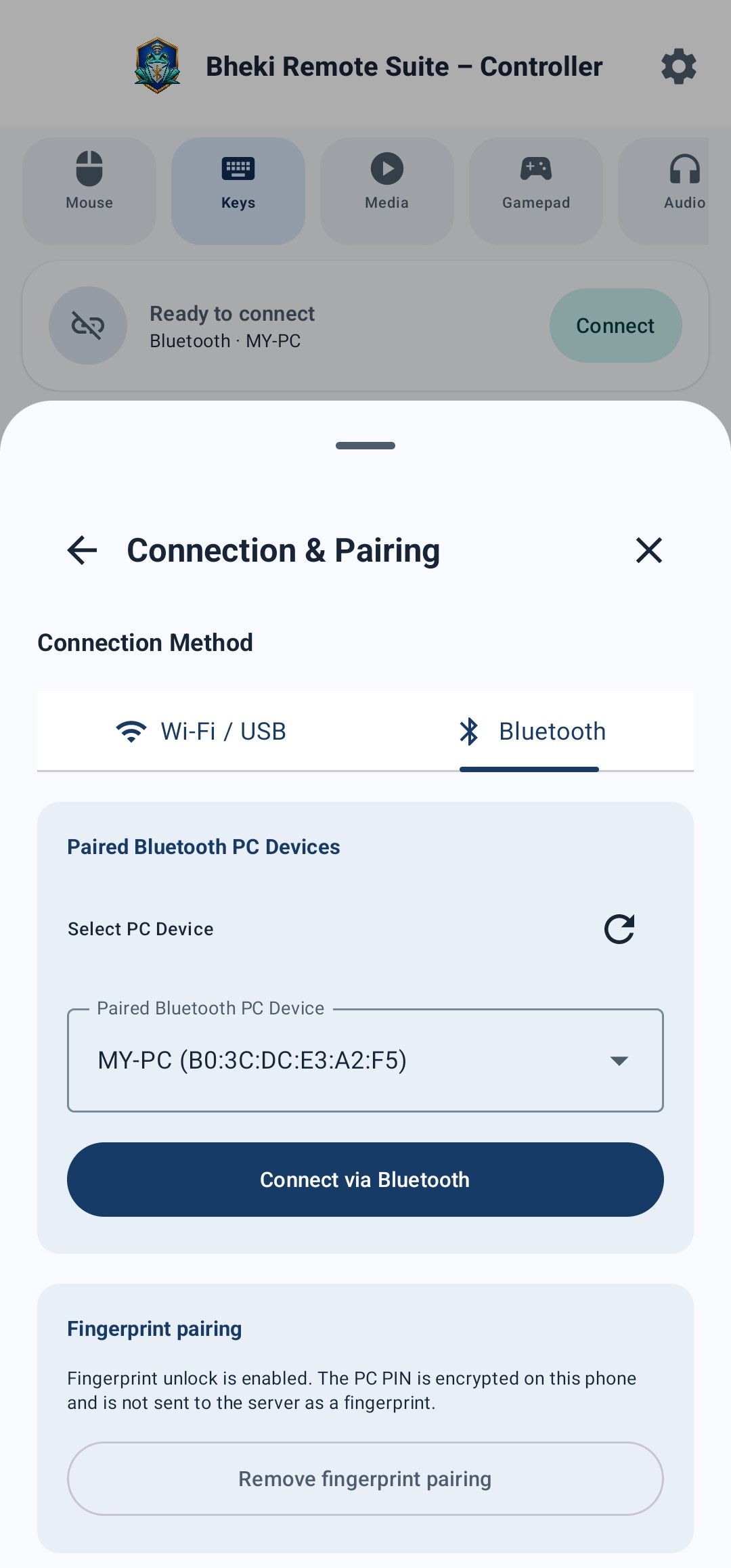
- Turn Bluetooth on for both your phone and PC.
- Ensure your PC is paired in Windows Bluetooth settings.
- Select your PC name (matching your host MAC) from the dropdown list.
Authorize Connection with the PIN
Tap Connect and enter the four-digit PIN shown in the PC server window.
Customize Preferences & Start Controlling
Once connected, use the app tabs for mouse, keyboard, media, gamepad, audio, camera, and file sharing. Settings let you adjust connection and display preferences.
Frequently Asked Questions
"Auto Find" didn't locate the server?
Confirm both devices are on the same Wi-Fi network, or enable USB tethering and reconnect. Check Windows Firewall access and enter the current network address shown by the PC server.
How do I use the phone mic in OBS or Zoom?
Install VB-Audio Virtual Cable on Windows, then select its recording input in your call app. Visit the VB-Audio website to download it. Turn on the microphone service in Bheki Remote and check the PC server status for the active audio route.
Bluetooth failed to connect?
Pair your Android phone and Windows PC in Windows Bluetooth settings first, then select the paired PC in Bheki Remote.
Does this work without an internet connection?
Phone-to-PC features use the local Wi-Fi, USB-tethered, or Bluetooth connection. Internet access may still be needed for downloads, purchase checks, and third-party services.